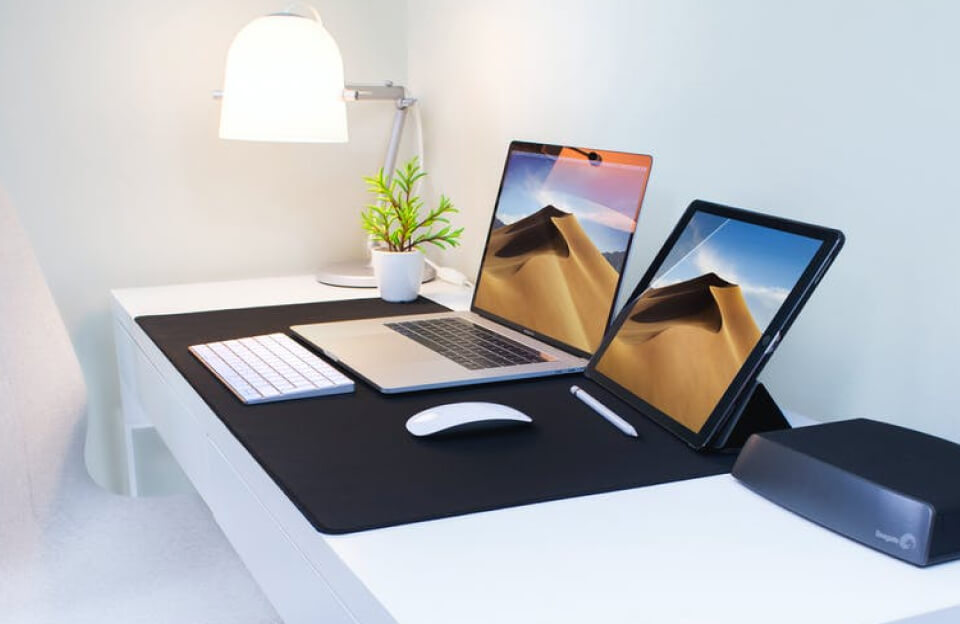
Most people choose between macOS and Windows 10 like they choose between tea and coffee. You pick one, stick with it, and move on.
But some users want both.
Maybe you need Windows for gaming or engineering tools. Maybe you prefer macOS for creative work. Or maybe you just like the idea of switching systems like changing rooms in a house.
Good news: it’s possible.
But it’s not as simple as installing two apps. Running macOS and Windows 10 on the same computer requires planning, technical setup, and a clear understanding of trade-offs.
Let’s break it down.
First, Is It Actually Allowed?
Yes—but with conditions.
Apple’s operating system, macOS, is officially designed to run only on Apple hardware like MacBooks and iMacs. Running it on non-Apple hardware is restricted by Apple’s license agreement.
Windows 10, on the other hand, is flexible and can run on a wide range of PCs.
So the combination usually happens in two legal ways:
- On a Mac (official Apple hardware)
- Through virtualization software
We’ll focus on safe and practical methods.
Method 1: Dual Boot (Most Powerful Option)
Dual booting means installing both operating systems on the same computer, but running only one at a time.
When you start your computer, you choose:
- macOS OR
- Windows 10
How it works:
- The hard drive is split into partitions
- Each OS gets its own space
- A boot manager lets you choose at startup
On Macs, Apple provides a tool called Boot Camp (for Intel-based Macs), which helps install Windows alongside macOS.
Pros of Dual Boot:
- Full performance for both systems
- No resource sharing
- Ideal for gaming or heavy design work
Cons:
- You must restart to switch OS
- Storage is divided
- Setup can be complex
Method 2: Virtual Machines (Most Flexible Option)
Virtualization allows you to run one operating system inside another.
For example:
- Windows 10 running inside macOS
- macOS running inside Windows (less common and more restricted)
Popular tools include:
- Parallels Desktop
- VMware Fusion
- VirtualBox
A virtual machine acts like a computer inside your computer.
Pros of Virtual Machines:
- Switch systems instantly
- No reboot required
- Easy file sharing between OS environments
Cons:
- Lower performance compared to dual boot
- Requires more RAM and CPU power
- Not ideal for heavy gaming or 3D rendering
Method 3: macOS on Non-Apple Hardware (Hackintosh Concept)
Some advanced users attempt to install macOS on standard PC hardware. This setup is often called a “Hackintosh.”
However, this method:
- Requires technical expertise
- May break after updates
- Is not officially supported by Apple
It exists in enthusiast communities but comes with stability and legal concerns depending on usage.
Hardware Requirements (Important)
Running both systems smoothly requires strong hardware.
Recommended specs:
- Processor: Intel i5 / i7 or Apple Silicon (for Macs)
- RAM: Minimum 8GB (16GB recommended)
- Storage: SSD strongly recommended
- GPU: Dedicated graphics for performance-heavy tasks
Without proper hardware, performance issues are inevitable.
Why People Run macOS and Windows Together
There’s a practical reason behind this setup.
1. Software Compatibility
Some tools only work on Windows (like engineering or gaming software), while others perform better on macOS (like creative suites).
2. Development Work
Developers often test applications across both systems.
3. Workflow Preference
Some users prefer macOS interface design but need Windows programs occasionally.
It’s not about luxury—it’s about flexibility.
Performance Trade-Offs You Should Know
No setup is perfect.
Dual Boot:
- Best performance
- No system slowdown
- But no multitasking between OS
Virtual Machine:
- Convenient switching
- But shared system resources
- Can feel slower under heavy load
Choosing depends on your priorities: speed vs convenience.
Common Problems Users Face
Here’s what often goes wrong:
- Storage partition errors
- Boot manager issues
- Driver conflicts (Windows on Mac hardware)
- Slow virtual machine performance
- System update compatibility problems
These are not deal-breakers, but they require careful setup.
Safety and Backup Is Essential
Before installing anything:
- Backup your data
- Use external storage
- Create recovery drives
A small mistake during partitioning can lead to data loss.
Think of it like renovating a house—you don’t start without saving your furniture first.
macOS and Windows: A Productive Combination
When set up properly, this dual environment can be powerful.
You get:
- macOS stability and ecosystem integration
- Windows flexibility and software support
It’s like having two tools instead of one.
But it only works well if you manage it carefully.
Future Trend: Cloud-Based Operating Systems
The idea of dual booting may become less important in the future.
Why?
- Cloud computing is growing
- Remote desktops are improving
- Applications are becoming platform-independent
Instead of installing two systems, users may simply stream environments as needed.
But for now, local dual systems still matter.
Final Thoughts
Running macOS and Windows 10 on the same computer is not just a tech trick—it’s a productivity strategy.
You can do it through:
- Dual boot for maximum performance
- Virtual machines for convenience
- Specialized setups for advanced users
Each method has strengths and limitations.
The key is not choosing the “best” system.
It’s building a setup that fits how you work.
Because in modern computing, flexibility is often more valuable than loyalty to a single operating system.
0 Comments