Life on CAD: Get to Know the Shortcut
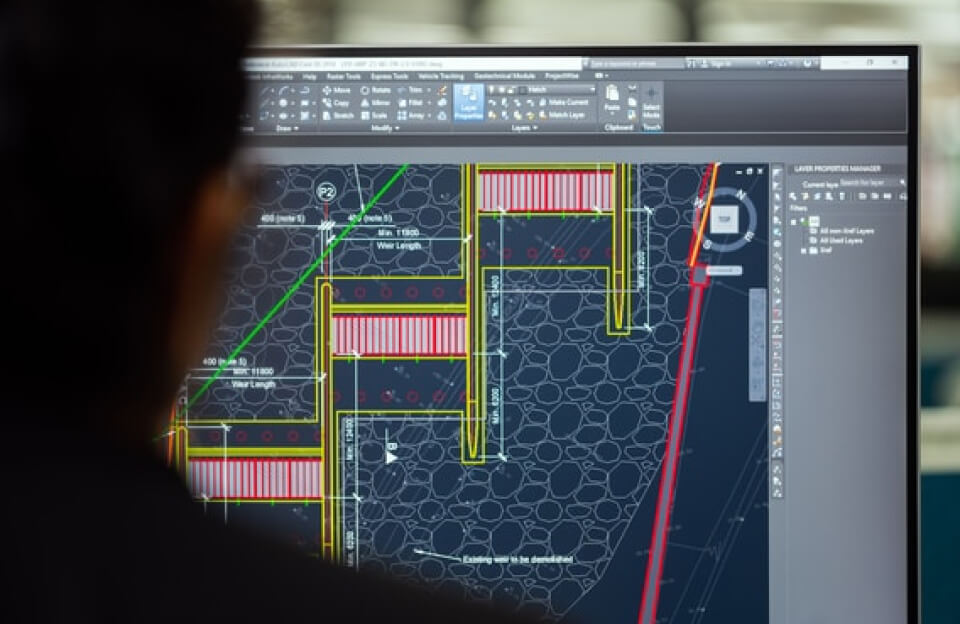
If you’ve ever watched a designer work inside CAD software, it can feel a bit like watching a pianist.
Hands move fast. Commands appear instantly. Lines, shapes, and measurements come alive without hesitation.
That speed isn’t magic.
It’s shortcuts.
In the world of CAD (Computer-Aided Design), shortcuts are not just convenience—they are survival tools for productivity. Whether you use AutoCAD, SolidWorks, Fusion 360, or similar tools, shortcuts define how efficiently you work.
Let’s break down how CAD shortcuts shape design life, and why mastering them changes everything.
What “Life on CAD” Really Looks Like
CAD software is used in:
- Architecture
- Mechanical engineering
- Product design
- Civil planning
Professionals use it to build precise digital models of real-world objects.
A platform like AutoCAD is one of the most widely used tools in this space.
But here’s the truth:
Nobody builds complex designs by clicking menus all day.
They use shortcuts.
Why Shortcuts Matter in CAD Work
CAD is detail-heavy work. Every millimeter matters.
Shortcuts help by:
- Reducing repetitive clicks
- Speeding up command execution
- Minimizing workflow interruptions
- Improving design accuracy
Think of shortcuts as “design muscle memory.”
The more you use them, the less you think about them.
And in design work, thinking time is better spent on creativity—not navigation.
Basic CAD Shortcuts Every Designer Uses
Let’s start simple. These are foundational shortcuts in most CAD tools:
- L → Line
- C → Circle
- REC → Rectangle
- TR → Trim
- EX → Extend
- M → Move
- CO → Copy
These commands form the backbone of daily drafting.
Instead of searching menus, designers type a letter and continue working instantly.
That small time saving multiplies across thousands of actions.
How Shortcuts Improve Design Thinking
Here’s something interesting: shortcuts don’t just save time—they change how you think.
When you stop focusing on tool navigation:
- You focus more on geometry
- You make faster design decisions
- You experiment more freely
This is similar to typing versus handwriting. The faster the input method, the more ideas flow.
In CAD, speed unlocks iteration. And iteration leads to better design.
Advanced Shortcuts for Professionals
Once basics become natural, professionals move to advanced workflows.
In AutoCAD, experienced users often rely on:
- XREF → External references
- LAYISO → Isolate layers
- MATCHPROP → Match properties
- ARRAY → Pattern duplication
- BLOCK → Reusable components
These shortcuts reduce complex operations into single commands.
At this level, efficiency becomes a competitive advantage.
Custom Shortcuts: Your Personal Workflow
Most CAD software allows customization.
Designers often create:
- Personalized command aliases
- Macro shortcuts
- Tool palettes
For example, instead of typing a full command, you might assign:
- “XX” → frequently used tool
- “DD” → dimension settings
- “VV” → view toggle
This customization turns software into a personal workspace rather than a fixed system.
The Psychology Behind Shortcut Mastery
Learning shortcuts is not just technical—it’s cognitive.
Your brain builds:
- Pattern recognition
- Motor memory
- Speed association
At first, you consciously think: “What is the command?”
Later, your fingers respond automatically.
This shift reduces mental load, allowing you to focus on problem-solving instead of tool navigation.
Mistakes Beginners Make in CAD
Many beginners avoid shortcuts because:
- They rely too much on menus
- They fear memorization
- They switch tools too often
This leads to:
- Slower workflows
- More errors
- Frustration during complex tasks
The irony? Shortcuts feel difficult only at the start. After a few days, they become second nature.
How Professionals Actually Work in CAD
A professional CAD workflow usually looks like this:
- Keyboard input dominates
- Mouse is used for navigation and selection
- Commands are executed in seconds
- Repetition is minimized
It’s fast, but also controlled.
That balance is what separates beginners from experienced designers.
Why CAD Shortcut Culture Matters
Shortcuts are not just productivity hacks—they represent a design philosophy:
“Think less about tools, more about outcomes.”
In industries like architecture and engineering, deadlines are strict. Projects involve:
- Large datasets
- Complex geometries
- Collaboration across teams
Efficiency isn’t optional. It’s required.
That’s why mastering tools like AutoCAD becomes essential for professionals.
The Future: Voice, AI, and Smarter Shortcuts
CAD tools are evolving.
Future systems may include:
- Voice-controlled commands
- AI-assisted drafting
- Predictive tool suggestions
- Gesture-based design control
But shortcuts will still matter.
Why?
Because speed and precision will always be core to design work—even if the input method changes.
Final Thoughts
Life on CAD is fast, structured, and detail-driven. Shortcuts are what make it manageable.
They:
- Save time
- Reduce effort
- Improve accuracy
- Shape how designers think
At first, they feel like extra effort to learn. Later, they become invisible—just like typing or driving.
And that’s the real goal.
Not to remember shortcuts.
But to reach a point where design flows directly from thought to screen—without friction in between.